Adding Widgets
With a click on the  button in Sidebar the Widget panel opens, showing the list of the available widget types that can be added to the dashboard:
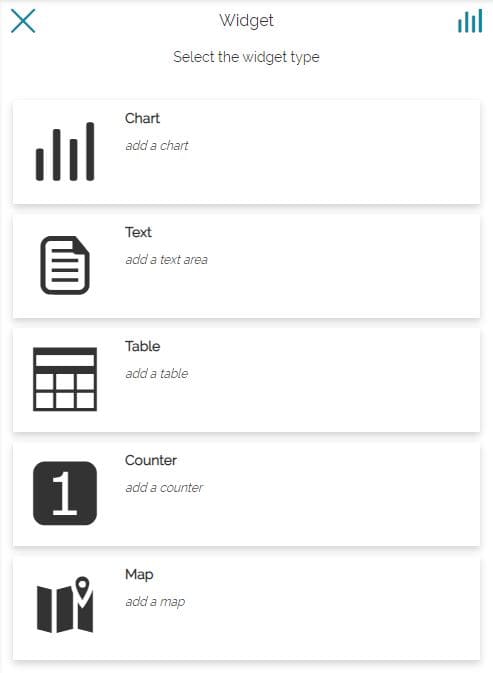
In particular, it is possible to choose between:
-
Chart
-
Text
-
Table
-
Counter
-
Map
Creating Chart, Text, Table and Counter widgets the procedure is almost the same as that described for create widgets in maps. The only minor differences are the following:
-
In dashboards as soon as the user select the widget type, a panel appears in order to select the layer from which the widget will be created
-
In dashboards the possibility to connect/disconnect widgets to the map is replaced with the possibility to connect/disconnect the Map widgets together or with other widget types (this point will be better explained in Connecting Widgets section)
Creating Map type widgets, otherwise, is a functionality present only in dashboards.
Map Widget
In dashboards, selecting the Map type widget, the following panel appears:
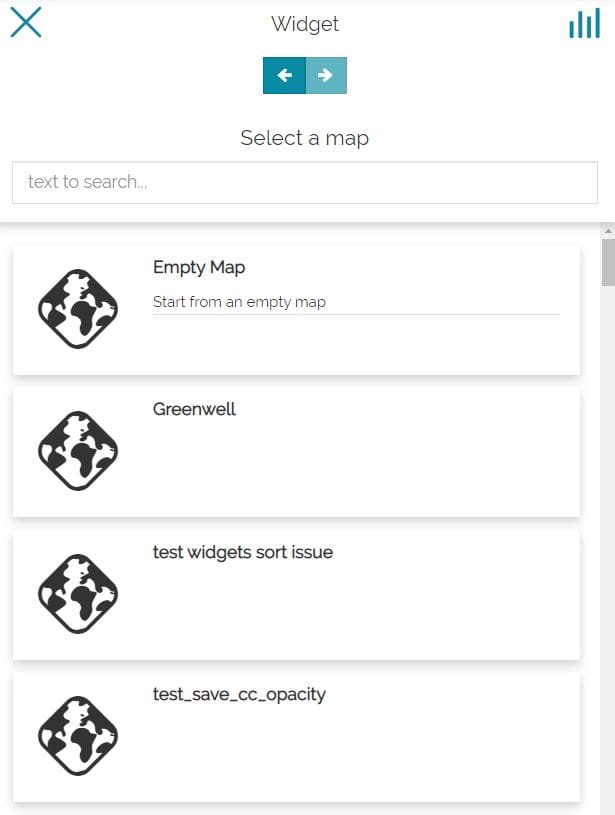
Here the user can:
-
Go back
 to widget type selection
 -
Search for a map by writing its title
-
Select a map (mandatory in order to move forward)
-
Move forward to the next step

The next panel is similar to the following (in this case an empty map was selected):
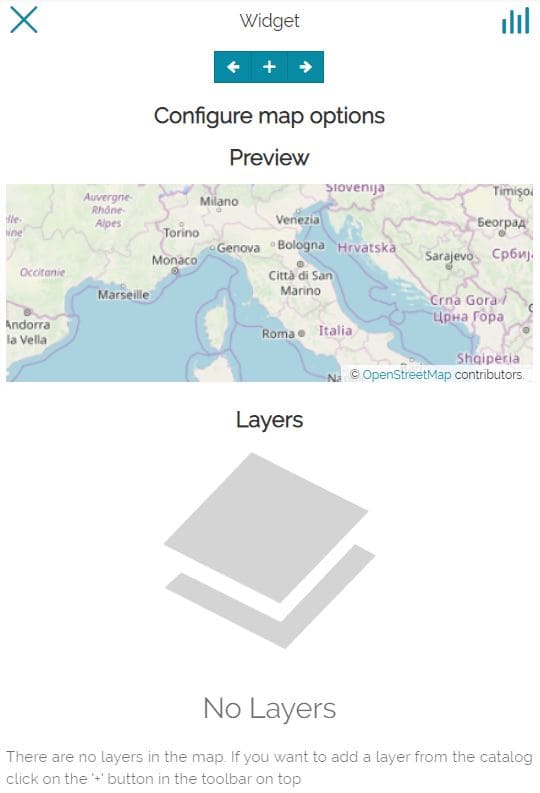
Now the user is allowed to add layers to the map through the button:
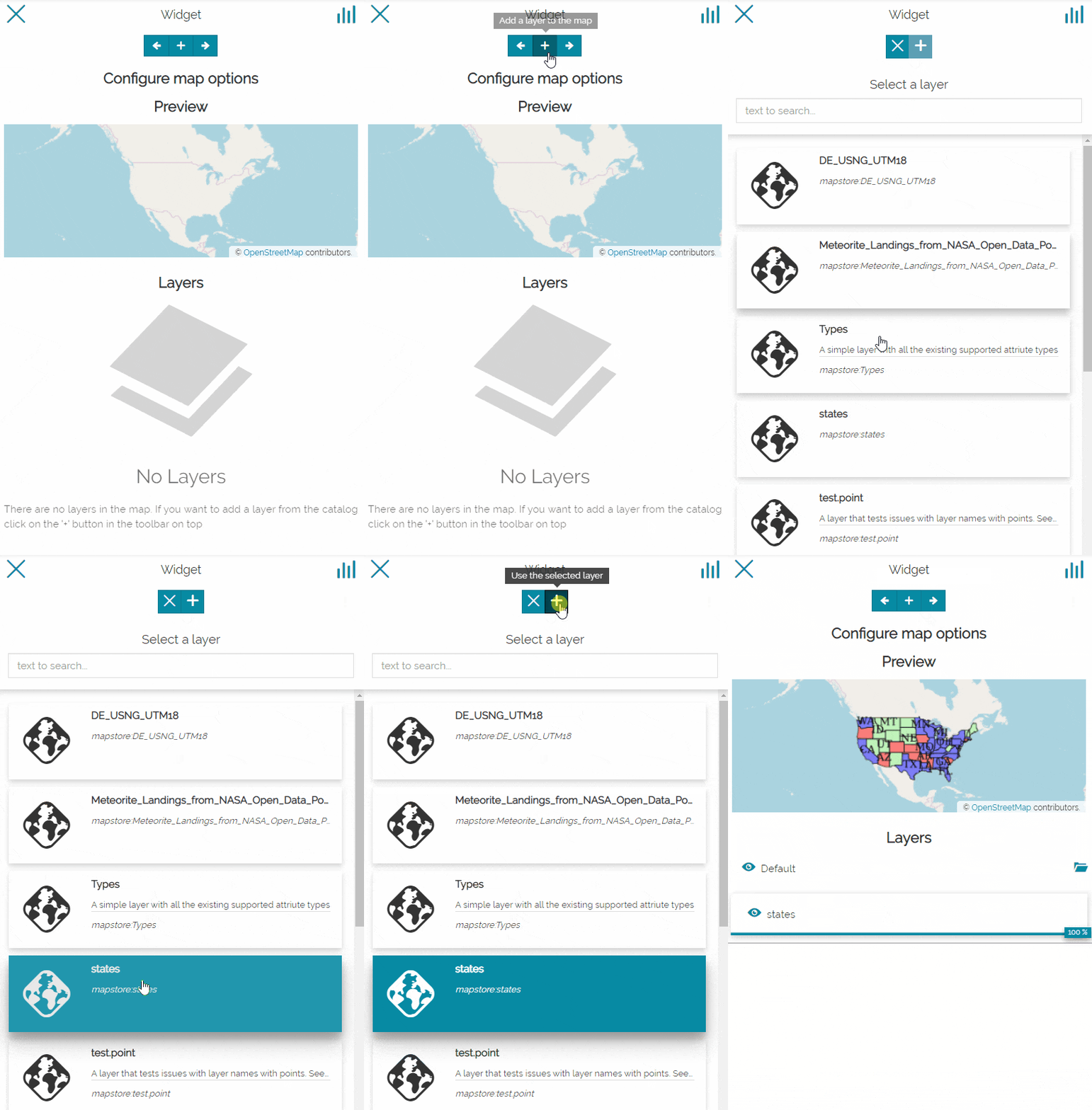
Once a layer is added to the map widget, it will be displayed in preview and in layers list:
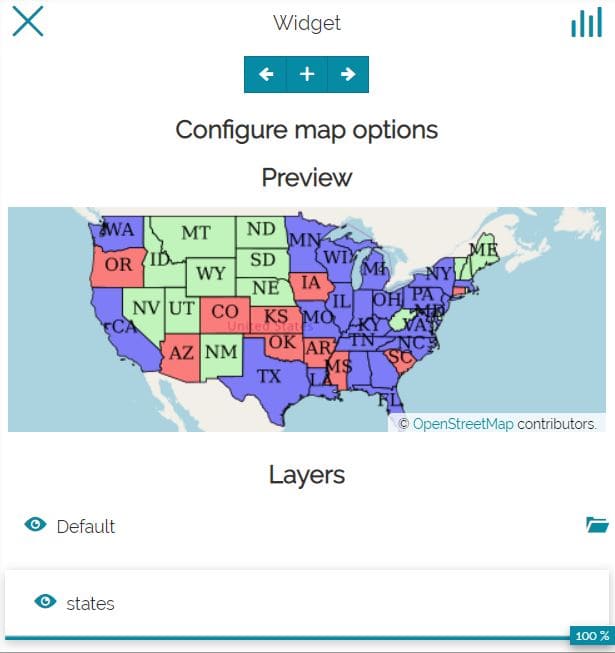
It's now possible to toggle the layer visibility, and set layers transparency (more information in Display options section). Furthermore, by selecting it, new buttons are added to the toolbar allowing to:
-
Zoom to layers

-
Access Layer Settings

-
Remove layers

Note
Adding layers is not mandatory, it is possible to create a widget map using an empty map.
Once the button is clicked, the last step of the process is displayed like the following:
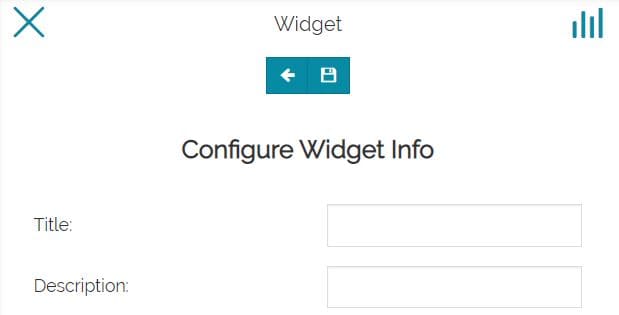
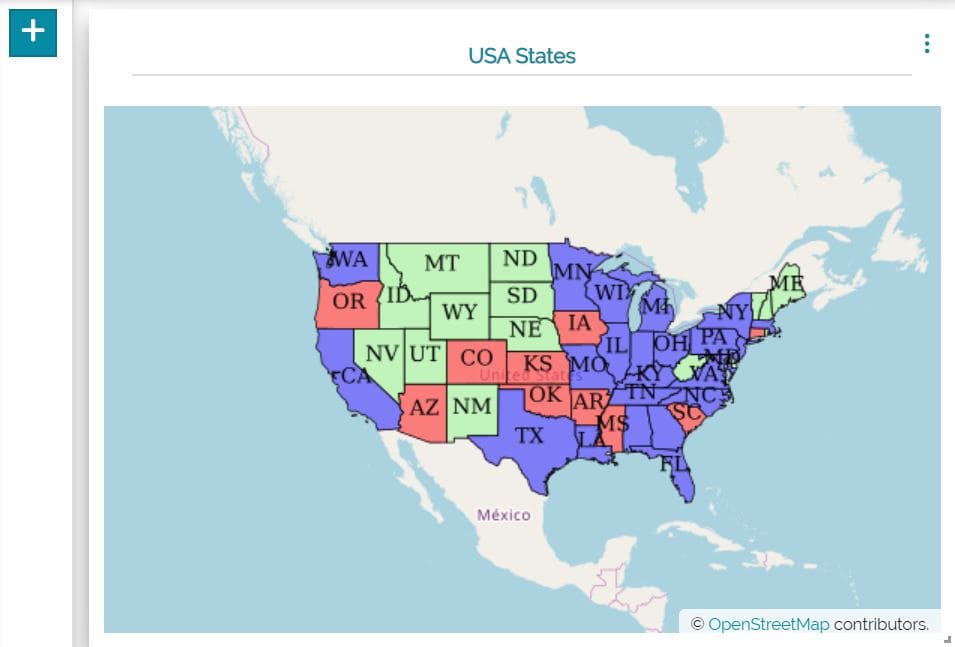
Here the user has the possibility to insert a Title and a Description for the widget (optional fields) and to complete its creation by clicking on the  button. After that, the widget is added to the viewer space:
Legend widget
When at least one Map widget is created and added to the dashboard, there's the possibility to add also the Legend widget, available in the widget types list:
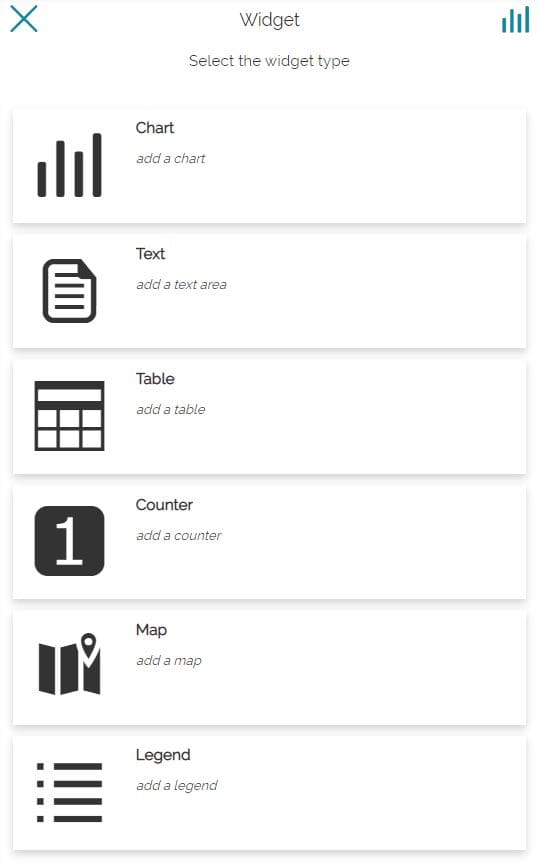
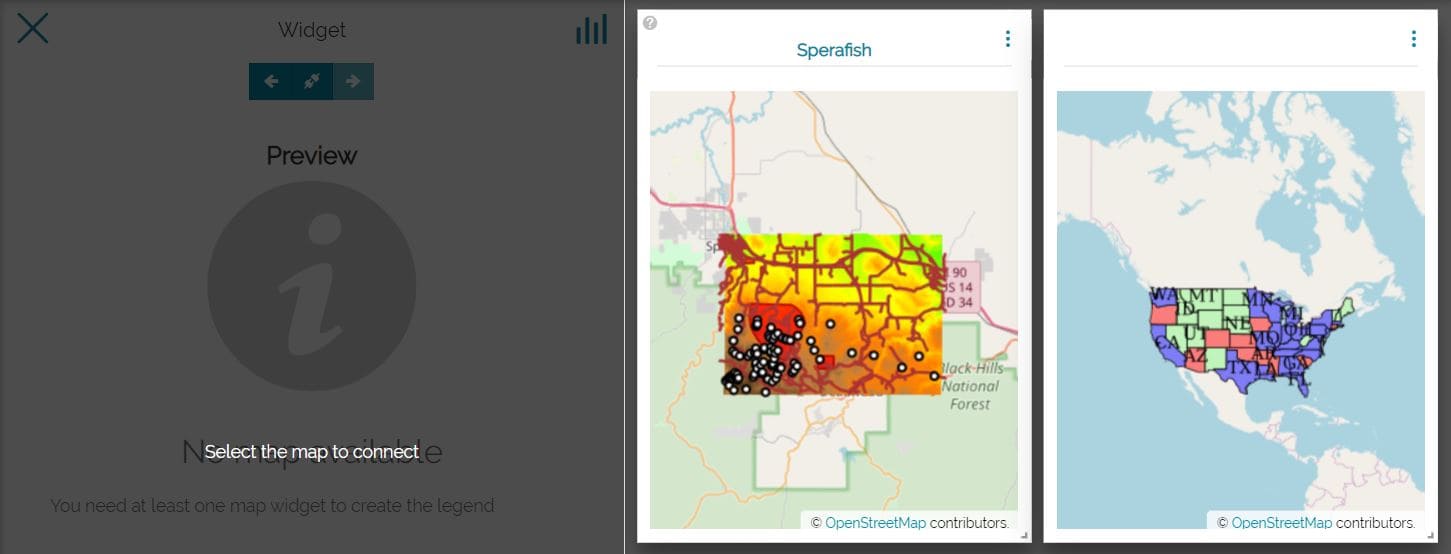
Selecting the Legend widget, the user can choose the Map widget to which the legend will be connected (when only a Map widget is present in the dashboard this step is skipped):
Once a Map widget is connected, the preview panel is similar to the following:
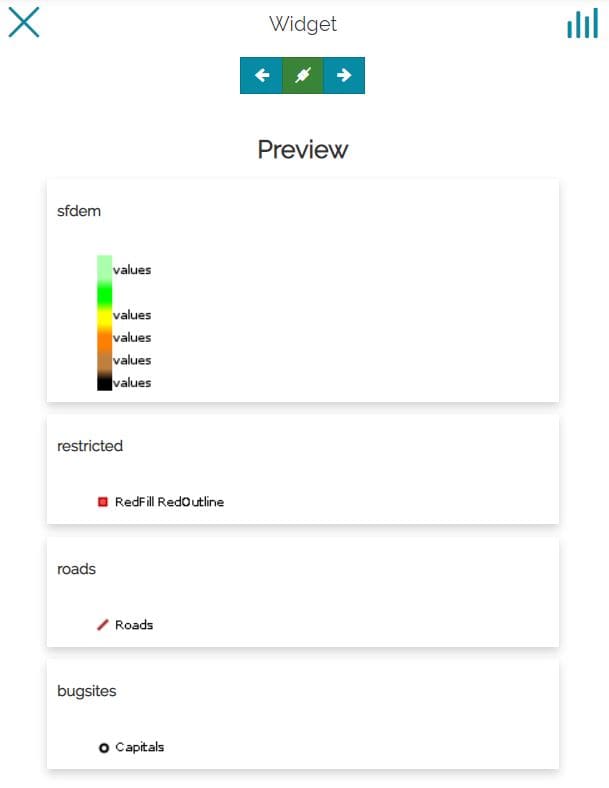
Here the user can go back to the widget types section, connect  or disconnect
  the legend to a map and move forward to widget options.
If the last option is selected, a configuration panel similar to the Map widgets one gives the possibility, before save, to set the Title and the Description for the Legend widget.
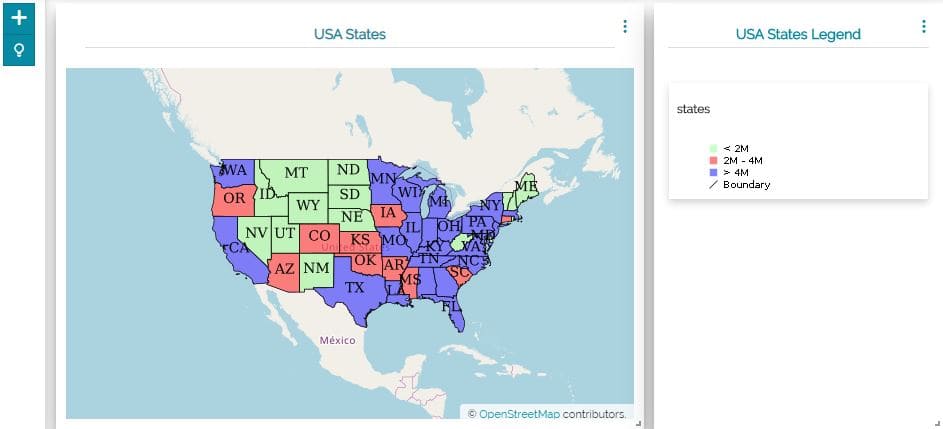
An example of a Map widgets and a Legend widget is the following: